Accounts & Identities
The Accounts section provides a unified view of all discovered accounts across your target systems. The Identities section manages the real-world people and service owners those accounts belong to.
Accounts
Navigate to Accounts to see all discovered accounts.
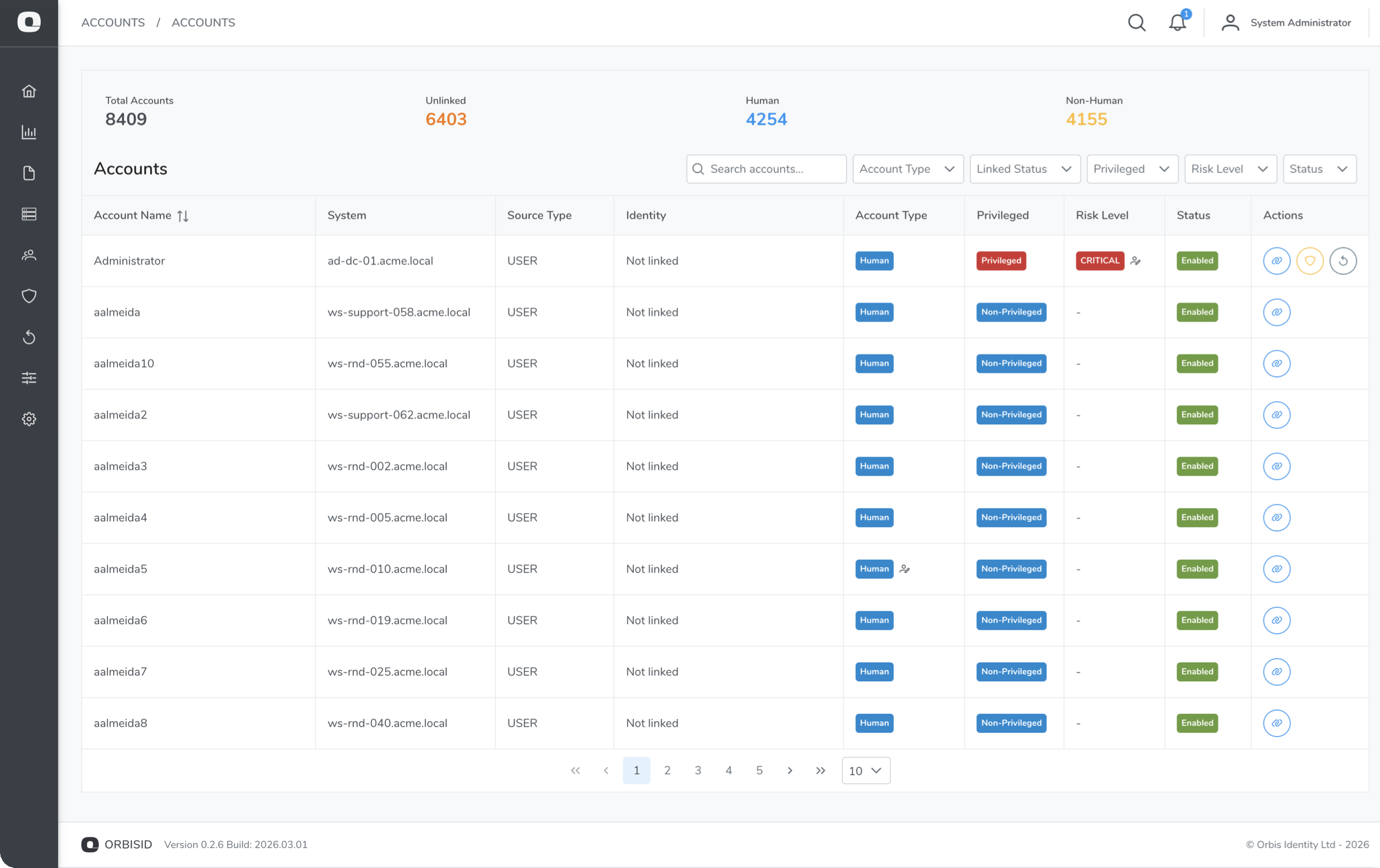
Account Statistics
The statistics bar at the top shows:
| Metric | Description |
|---|---|
| Total | All discovered accounts |
| Unlinked | Accounts not linked to any identity |
| Human | Accounts classified as human user accounts |
| Non-Human | Accounts classified as service/system accounts |
Filtering Accounts
Use the filter controls to narrow the list:
| Filter | Options | Description |
|---|---|---|
| System | Dropdown of all systems | Show accounts from a specific system |
| Account Type | Human, Non-Human | Filter by classification |
| NHI Subtype | API Key, Service Account, Cloud Role, etc. | Filter Non-Human accounts by subtype |
| Linked Status | Linked, Unlinked | Filter by identity link status |
| Enabled | Enabled, Disabled | Filter by account status |
Account Details
Click an account to view its full details:
| Field | Description |
|---|---|
| Username | The account name on the target system |
| Display Name | Friendly name (if available from the scan) |
| System | The target system this account belongs to |
| Account Type | Human or Non-Human (set by policy rules or manual override) |
| NHI Subtype | Finer-grained classification for Non-Human accounts (API Key, Service Account, Cloud Role, etc.) — only shown when Account Type is Non-Human; set by the connector, a policy rule, AI, or manual override |
| Privilege Level | Assigned by policy rules or manual override |
| Risk Score | Composite 0–100 Privileged Account Risk Score, with a category breakdown (see below) |
| Enabled | Whether the account is active on the target system |
| Linked Identity | The identity this account is linked to (if any) |
| Groups / Entitlements | Group memberships and permissions |
| Last Scanned | When this account was last seen in a scan |
Archived Accounts
Accounts no longer found in the latest scan of their system, or whose system has been removed, move automatically to the Archived Accounts tab, each showing an Archived Date. Archiving is automatic only — there's no manual "archive" action, since the tab always reflects what the most recent scan actually found.
If an archived account reappears in a later scan — or, where Real-Time Events is enabled for its system, is reported live — it moves back to the main Accounts tab automatically, with a fresh Last Detected date.
Archived accounts keep their full detail view: groups, attributes, services, and Audit History all remain visible, so you can always see what access an account held before it disappeared.
Audit History
Every account's detail view has an Audit History tab, a chronological record of what happened to it over time:
- First detected
- Attribute changed (a curated set of commonly-referenced fields, such as description, department, or manager)
- Enabled/disabled
- Added to or removed from a group
- Archived or restored
- Account Type, NHI Subtype, or PAM Risk Level changed
- Linked to or unlinked from an identity
Each entry shows when it happened and how it was made — by a scan, a policy rule, AI, or an administrator.
NHI Subtype Classification
Non-Human accounts get a further, finer-grained NHI Subtype — one of API Key, Service Account, Cloud Role, Managed Identity, Application, Scheduled Task, Bot, Certificate, Machine Account, or Other — shown as a tag next to the account name.
This subtype is assigned one of three ways, shown by a source badge:
| Source | Meaning |
|---|---|
| Connector | Asserted directly by the scanner from an unambiguous source-system signal (e.g. an AWS IAM access key, an Azure AD service principal's certificate, a CyberArk platform ID) — no rule or AI involved. Available on many connectors — see Systems for which. |
| Rule | Matched by a built-in or custom NHI Subtype policy rule — see Policy Rules. |
| AI | Assigned by the AI-assisted NHI Subtype classifier when no connector signal or rule matched — see AI-Assisted NHI Subtype Classification. |
| Manual | Set by an administrator via Override NHI Subtype (see Privilege Overrides below). |
| Inherited | Inherited from a group/entitlement relationship, the same way privilege inheritance works. |
A connector-asserted or manually-overridden subtype always takes precedence over a rule or AI classification.
Linking Accounts to Identities
Linking an account to an identity establishes ownership - it answers "who is responsible for this privileged account?"
- Find the account you want to link
- Click the Link icon (chain link)
- Search for an identity by name, email, or employee ID
- Select the identity and confirm
To unlink an account, click the Unlink icon on a linked account.
A ranked Suggested Matches list appears above the search box, each with a confidence score and the reason for the match (e.g. matching email, or "jsmith" matched to Jane Smith's initial and surname) — click one to select it instantly. This works even without OrbisAI enabled; AI only adds a second opinion on genuinely ambiguous matches. High/Critical PAM Risk Level accounts always require an extra explicit confirmation before linking, however confident the match.
For a hands-off alternative, an Identity Linking (AI Auto-Link) policy rule can link these automatically during a scan once its confidence threshold is met — see AI-Assisted Identity Linking. The same High/Critical exception applies there too, non-negotiable: those accounts are always left here for manual review.
Bulk Linking
To link multiple accounts at once:
- Select multiple accounts using the checkboxes
- Click Bulk Link
- Search for and select the identity
- Confirm
Privilege Overrides
Policy rules automatically assign privilege levels during scans. If a rule incorrectly classifies an account, you can override it manually.
- Select an account
- Click Override Privilege (or Override Account Type, or Override NHI Subtype for a Non-Human account)
- Select the new level and enter a reason (minimum 10 characters)
- Click Confirm
Overridden accounts show an indicator badge. To revert to the rule-based classification, click Reset to Rule-Based.
Overrides persist across scans - they will not be overwritten by the next policy rule evaluation.
Privileged Account Risk Score
Every privileged account gets a composite Risk Score from 0 (lowest risk) to 100 (highest risk), shown as a colour-banded badge in the Risk Score column of the Accounts list. Click the column header to sort the list by score, ascending or descending, to see your worst offenders first.
The score combines five weighted categories:
| Category | What it measures |
|---|---|
| Ownership | Whether the account is linked to an identity, whether that identity is active, and whether the account is non-human/shared |
| Management Coverage | Whether the account is managed in a PAM/vault tool |
| Staleness | Password age and how long since the account last logged on |
| Threat Activity | Open Threat Detections for the account and their ML confidence score |
| Blast Radius | How many privileged groups are reachable through this account's credential — see Auth Delegation below |
The five category scores are combined into a weighted average (using the configured weights), then multiplied by the account's PAM Risk Level (its system's risk tier), before being capped at 100:
| PAM Risk Level | Multiplier |
|---|---|
| Low | ×0.85 |
| Medium | ×1.00 |
| High | ×1.15 |
| Critical | ×1.30 |
For example, an account scoring 70 on the weighted category average, on a system with a High PAM Risk Level, gets a headline score of 70 × 1.15 = 80.5, rounded to 81.
A privileged account is never treated as truly zero risk just for being well managed - the headline score is then floored at a minimum that scales with the account's PAM Risk Level tier, so it can't be zeroed out even if every category above scores 0:
| PAM Risk Level | Baseline floor |
|---|---|
| Low | 10 |
| Medium | 20 |
| High | 30 |
| Critical | 40 |
For example, a perfectly managed account (linked, active, PAM-managed, fresh password, no threats) on a Critical-tier system still scores at least 40, not 0.
Open an account's details to see the Privileged Account Risk Score section, which shows each category's contribution and a plain-language list of the factors driving it - every category always shows at least one factor, whether that's a problem to fix ("No linked identity", "Password 180 days old") or confirmation that it's in good shape ("Managed in a PAM/vault tool", "No open Threat Detections").
Category weights are admin-configurable under Administration > Settings (see Privileged Account Risk Score), which also has a Recalculate Risk Scores button to refresh every account's score on demand, without waiting for the next scan.
Risk scores recalculate automatically after every scan that completes via a Scan Policy (including on-demand policies, available on all editions). A scan triggered directly against a single system without a saved policy does not recalculate risk scores - trigger it via an on-demand Scan Policy, or use the Recalculate Risk Scores button on the Settings page, if you want the score refreshed sooner.
This feature is available on all editions, including Community. On Pro and Enterprise editions, a historical snapshot of each account's score is also retained after every scan for future trend reporting.
Identities
Navigate to Accounts > Identities to manage the identity directory.
Creating an Identity
- Click Add Identity
- Fill in the fields:
| Field | Required | Description |
|---|---|---|
| Display Name | Yes | Full name of the person or service owner |
| No | Email address | |
| Employee ID | No | HR or corporate directory identifier |
| Department | No | Organisational department |
| Status | Yes | Active or Inactive |
- Click Save
Viewing Linked Accounts
Click an identity to see all accounts linked to it. This provides a single view of every privileged account owned by that person or team.
Identity Sources
Identities can be created manually or synced from external sources (e.g., HR systems or directory services) during a scan. The Sources tab on an identity shows where it originated from.
Entitlements
Navigate to Accounts > Entitlements to view all discovered entitlements (group memberships, roles, and permissions) across all systems.
Each entitlement shows:
| Field | Description |
|---|---|
| Name | The entitlement name (e.g., group name, role name) |
| System | The target system it belongs to |
| Type | Group, Role, Permission, etc. |
| Privilege Level | Assigned by policy rules |
| Members | Number of accounts holding this entitlement |
Entitlements can also have privilege overrides and PAM risk levels, similar to accounts.
Privilege Inheritance
Entitlements can propagate privilege levels to their member accounts. Use Propagate Inheritance to recalculate account privileges based on their group memberships.
Archived Entitlements
Entitlements no longer found in the latest scan of their system, or whose system has been removed, move automatically to the Archived Entitlements tab, each showing an Archived Date. As with accounts, archiving is automatic only, and an archived entitlement moves back to the main Entitlements tab automatically if it reappears in a later scan.
Audit History
Every entitlement's detail view has an Audit History tab, showing a chronological record of what happened to it: first detected, an attribute changed (e.g. description), its Privileged flag changed, its PAM Risk Level changed, or it was archived or restored — each entry showing when it happened and how it was made (by a scan, a policy rule, AI, or an administrator).
Membership History
Every entitlement's detail view also has a Membership History tab, listing every account that has ever been a member — direct or inherited — including members that have since left, with when each was added and, if no longer a member, when they were removed. Each row links through to that account, even if the account is itself now archived.
Discovered Services
Navigate to Accounts > Services to view services discovered during scans (e.g., systemd services on Linux, Windows services). Each service record shows the service name, the account it runs as, and the system it was found on.